01 / TODAY
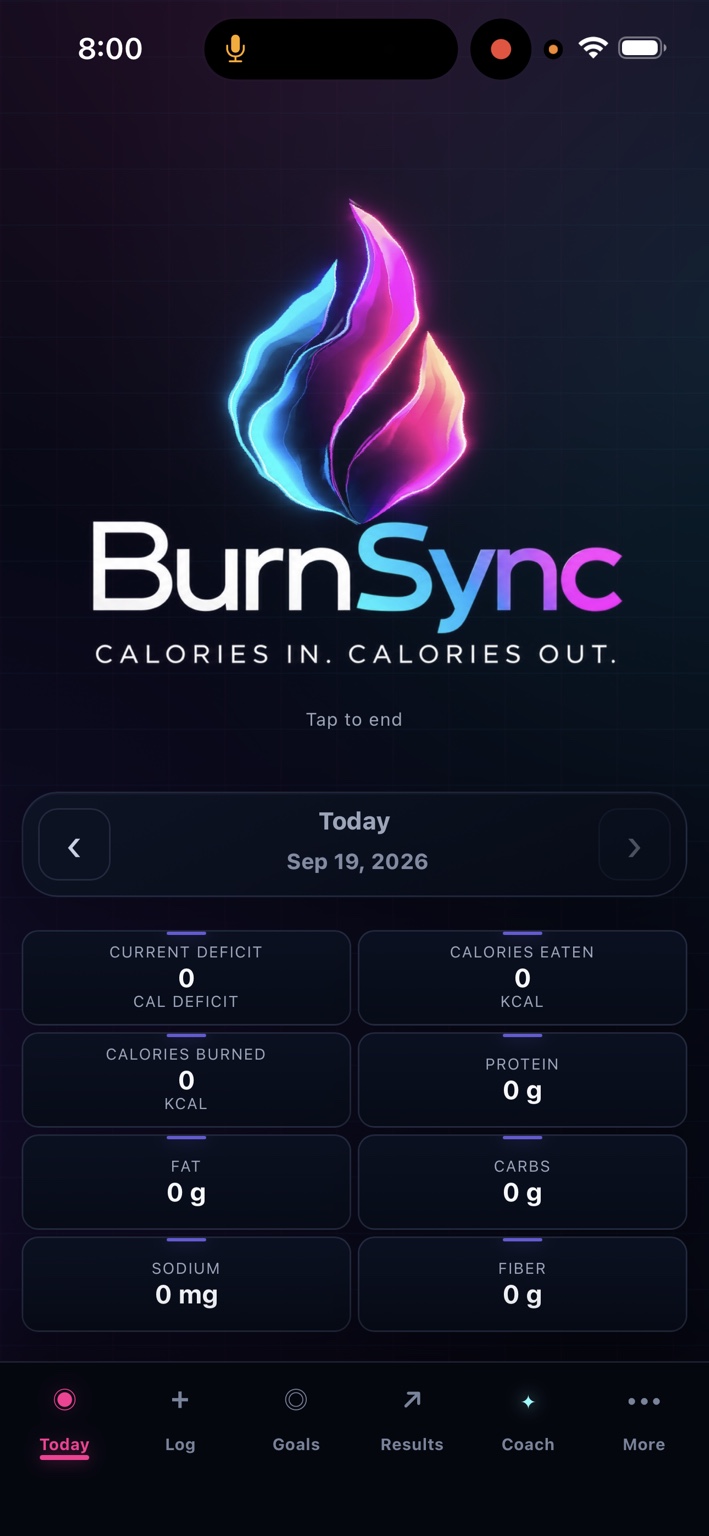
Your day.
All together.
See calories eaten, calories burned, and your current deficit alongside your daily nutrients.
TRY IT
Open Today. Use the arrows beside the date to review another day.
INSIDE BURNSYNC
Track your food, understand your numbers, and get support from Ember—all in one place.
THE APP, UP CLOSE
Pre-release app screenshots.
The final release may look different.
See calories eaten, calories burned, and your current deficit alongside your daily nutrients.
TRY IT
Open Today. Use the arrows beside the date to review another day.
Ember is your BurnSync AI coach. Describe a meal, ask about your day, or use text when speaking isn't convenient.
TRY IT
Tap the BurnSync logo, allow microphone access, and wait for the greeting before speaking.
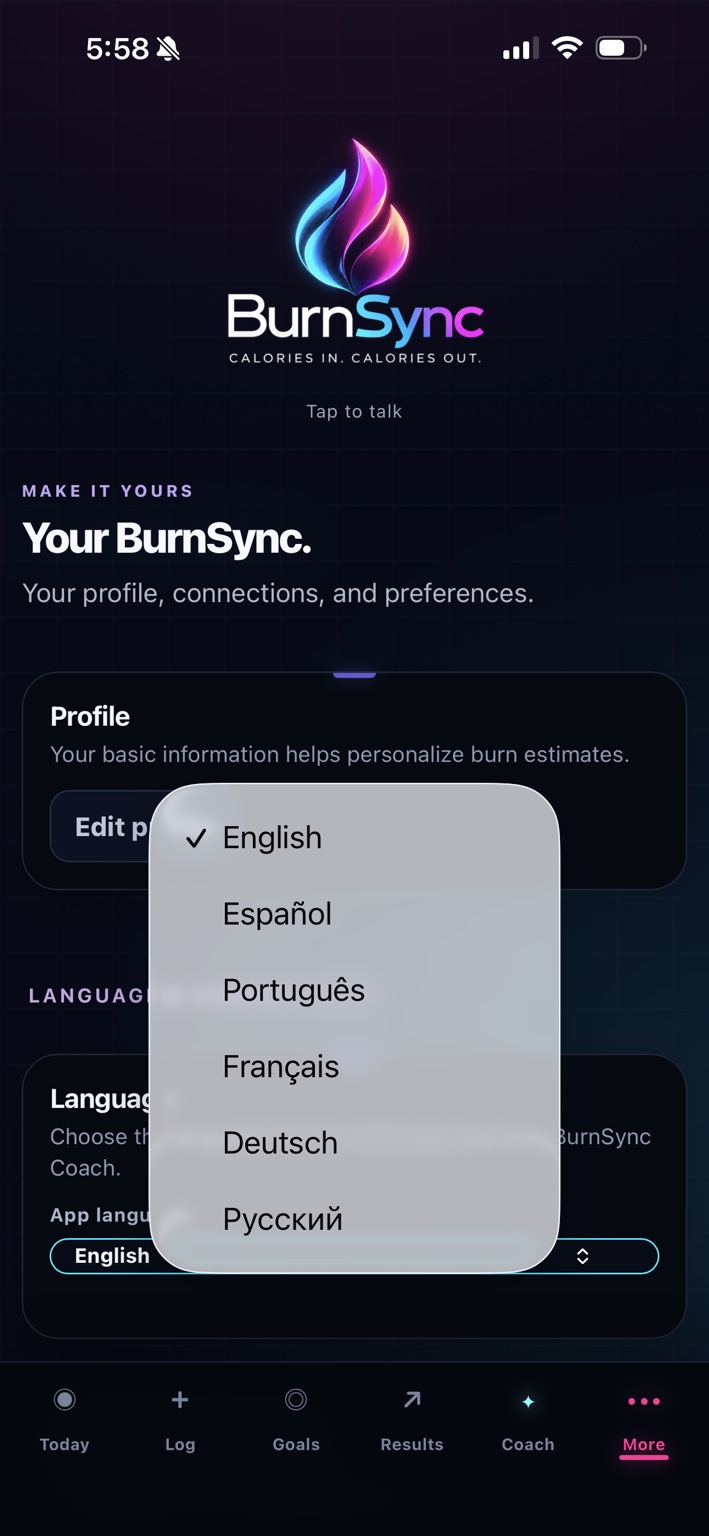
Personalize your profile and choose from English, Spanish, Portuguese, French, German, or Russian.
TRY IT
Open More, find Language, and choose the language you want to use.
Tap any screenshot to enlarge it. The dashboard shown is an empty day, before food or activity has been entered.
YOUR GOAL, VISUALIZED
Upload a photo to create an AI-generated visualization of yourself at your goal weight.
How to create your previewAI-generated visualization, not a prediction of results.
FROM MEALS TO MOMENTUM
Describe your meal to Ember or use manual food entry. Barcode scanning gives you another way to log packaged foods.
How to log a mealKeep your weight and tracking goals in view. Return to Goals when you want to review what you're working toward.
Find your way aroundReview your recorded progress over time. Pair the longer view in Results with the daily details on Today.
Review your progressYOUR QUICK-START GUIDE
A simple first day with BurnSync. Read the full User Guide ↗
Try: “I had six ounces of grilled chicken and a cup of rice.”
Daily deficit = calories burned − calories eaten.
A LITTLE MORE CLARITY
The basics, before you begin.
It's calories burned minus calories eaten for the selected day. For example, 2,350 burned minus 1,850 eaten gives a 500-calorie deficit. Those are example numbers, not a recommended target.
Ember is the name of BurnSync's AI coach. You can use the coach to talk about meals and ask questions about your day. Its voice and responses are AI-generated.
Tap the BurnSync logo and allow microphone access when prompted. Wait for the greeting before speaking. During an active session, use the “Tap to end” control to finish.
No. You can use text with the coach or enter food manually through Log when you prefer a quieter way to track.
Include the food, portion size, and how it was prepared. Brand names, cooking oil, sauces, drinks, and toppings can help make the entry more useful. Check the result against what you actually ate.
No. Food portions and calorie burn involve estimates. Check serving sizes and packaged-food labels, and review your entries for mistakes. BurnSync's numbers depend on the information recorded.
It shows an empty day. Make sure you've selected the correct date, then check that food and burn information have been entered for that day.
The current language menu offers English, Spanish, Portuguese, French, German, and Russian. Open More and use the Language setting.
Check microphone permission for BurnSync or the browser you're using. End the session and try again in a quieter place. You can continue with text or manual food entry.
BurnSync is now available in the United States.
$24.99 USD/month. Subscription required. No free trial. Renews monthly until canceled.
Download on the App Store