THE BURNSYNC USER GUIDE
Your app.
Step by step.
From your first meal to your goal preview—find the instructions you need below.
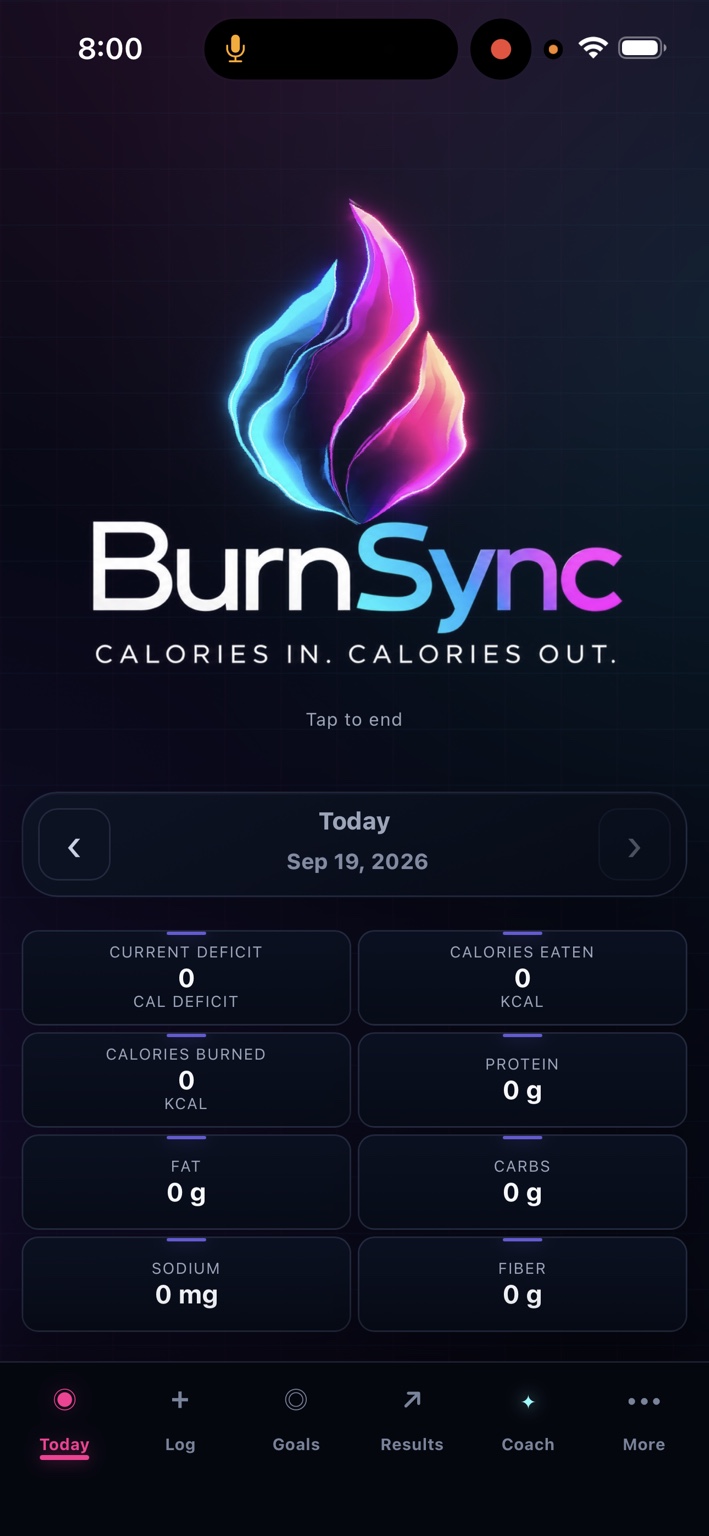
Guide for the pre-release app. Screens and available controls may change before launch. Screenshots show an empty day; tap them to enlarge.
Getting
started
Start with your profile, then log a meal and review Today.
- Open More and review your profile information, including the information used for personalized burn estimates.
- Choose your preferred language.
- Return to Today and check the selected date.
- Use Log or talk with Ember to record a meal.
- Review your entries and daily totals.
Allow microphone access when using voice. Camera or photo access may be requested when you choose a feature that needs it.
Today:
your daily overview
- Open Today.
- Use the arrows beside the date to choose the day you want to review.
- Read calories eaten, calories burned, and your current deficit together.
- Review protein, fat, carbs, sodium, and fiber alongside those totals.
Understanding your deficit
Daily deficit = calories burned − calories eaten. For example, 2,350 burned minus 1,850 eaten gives a 500-calorie deficit. These are sample numbers, not a personal target. A negative result means recorded intake exceeds recorded burn.
Checking a number
Check the date and the underlying food or activity entries if a total looks unexpected. An empty day can show zeros. Food and burn values are estimates that depend on the information entered.
Log:
food and activity
Describe a meal
- Tap the BurnSync logo to start a voice conversation, or use text with the coach.
- Include the food, portion, and preparation method. Mention oils, sauces, toppings, drinks, and extras.
- Answer any follow-up questions about amounts.
- Review the resulting entry for the correct food, portion, and date.
Try: “I had six ounces of grilled chicken, one cup of rice, and a tablespoon of olive oil.”
Enter food manually
- Open Log and choose manual food entry.
- Enter the food and amount using the nutrition information available to you.
- Check units and servings before completing the entry.
- Return to Today to review the totals.
Scan a barcode
- Open the barcode-scanning option in Log.
- Allow camera access if prompted, and hold the barcode in view.
- Check that the returned product and serving size match the package.
- Adjust the quantity to what you ate before completing the entry.
If scanning does not find a matching product, enter it manually using the package label.
Record activity
Use the fitness area in Log to record your activity. Include its duration and the details requested by the app. Review any estimated calorie burn and the selected date before completing the entry.
When entering burn information manually, check whether your number represents activity alone or a total daily burn so you do not count the same activity twice.
Ember:
voice and text
Ember is BurnSync’s AI coach. Its voice and responses are AI-generated.
Start a voice conversation
- Tap the BurnSync logo.
- Allow microphone access when prompted.
- Wait for the greeting, then speak naturally.
- Ask about your day or describe a meal with its portions.
- Use Tap to end to finish the active session.
Use text instead
Open the coach’s text conversation when speaking is inconvenient. Include the same food, portion, and preparation details you would give by voice.
Check the response
Review suggested food values and logged entries. Clarify an incorrect portion or missing ingredient before relying on your daily totals.
Goals:
choose your direction
- Open Goals.
- Review your current weight and the goal information shown.
- Enter or update your target using the available goal controls.
- Check the units and values before confirming changes.
- Use Results to follow your recorded progress over time.
For the photo-based visualization, follow the instructions below.
Picture
your goal
Use a photo to create an AI-generated visualization of yourself at your goal weight.
- Open Goals and choose the photo-preview option.
- Select a clear photo of yourself. Allow photo access if prompted.
- Enter or confirm the goal weight for your preview, checking the weight units.
- Follow the on-screen prompts to generate the image.
- Review the preview once generation finishes.
AI-generated visualization, not a prediction of results.
This feature illustrates a goal; it does not compare actual progress photos or measure a change in your body.
Results:
review your progress
- Open Results.
- Review your recorded weight and tracking history.
- Use the available period controls to explore the time range you want to see.
- Return to Today and select a particular date to review its daily details.
Missing entries can leave gaps in your history. Check the dates and recorded information before interpreting a trend.
More:
profile and language
Review your profile
Open More to review your personal information and available preferences. Keep the information used for burn estimates accurate.
Change your language
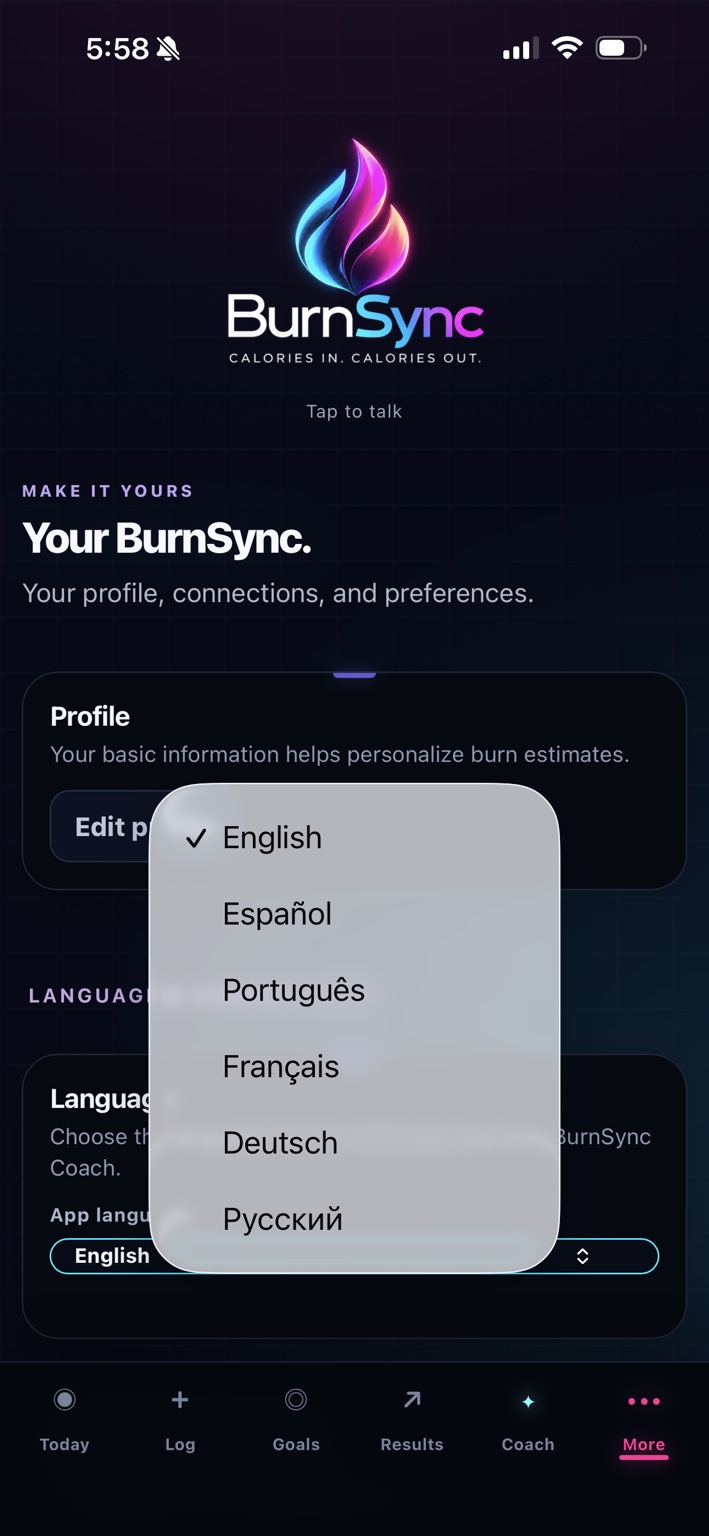
- Open More.
- Find Language.
- Select English, Spanish, Portuguese, French, German, or Russian.
Return to the app and check that your selection is active before starting your next conversation.
Trouble?
Start here.
The microphone is not working
Check microphone permission for BurnSync or your browser. End the active voice session, then tap the logo to try again. Wait for the greeting and try a quieter location. Text and manual entry remain alternatives.
Ember misunderstood my meal
Clarify one item at a time, including its portion and preparation. Review the recorded entry and correct it using the available controls so an incorrect or duplicate meal is not included in your total.
My daily totals look wrong
Check the selected date, serving sizes, units, and duplicate entries. Review whether a burn value includes calories already recorded elsewhere.
The barcode does not scan
Check camera permission, improve the lighting, and keep the barcode steady and fully visible. If the product is not found, use manual entry and the package label.
The goal photo will not load or generate
Check photo access and your connection. Follow any error message shown by the app. If generation is still in progress, let it finish before starting another request.
My history is empty
Check that you have recorded entries for the date or period you selected. An empty day in the screenshots is not an example of a completed food log.
Where is the App Store download?
BurnSync is now available in the United States.
$24.99 USD/month. Subscription required. No free trial. Renews monthly until canceled.
Download on the App Store